SpeakaholicSpeakaholic

Video Editor

Create stunning videos with our professional timeline editor

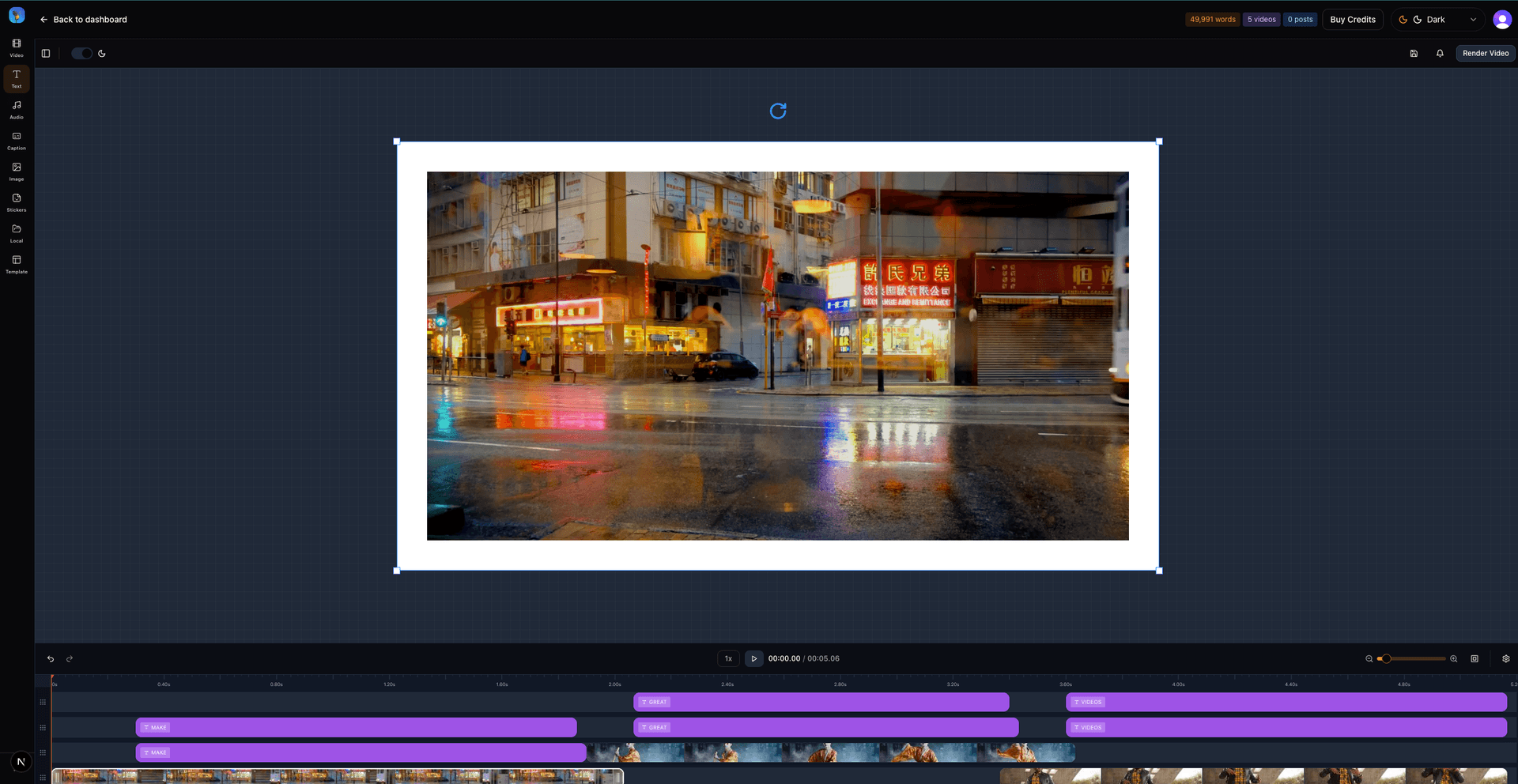
Video Editor Interface

Getting Started

The Video Editor is a professional-grade timeline-based editor powered by React Video Editor and Remotion, designed to help you create engaging videos from your TTS audio, images, and video clips.

Quick Start Guide

1. Import Your Media

Upload images, videos, or select from your saved TTS audio files. Assets appear in the left sidebar.

2. Add to Timeline

Click the + button on any asset to add it to the timeline. Clips automatically position sequentially.

3. Edit & Arrange

Drag clips horizontally to reposition, drag edges to resize duration, or drag vertically to move between layers.

4. Preview & Export

Use the play button or scrub the timeline to preview. Click Render MP4 when ready to export.

Timeline Features

Multi-Track Layout

  • Narration: Audio track for TTS or uploaded sound files
  • Captions: Text overlays and subtitles
  • Visual Overlays: Images, logos, and graphics
  • Callouts: Call-to-action banners and key phrases
  • B-Roll: Video clips and cutaways

Timeline Controls

  • Zoom: Use +/- buttons to zoom in for detail or zoom out for overview
  • Play/Pause: Preview your video at any time
  • Scrubber: Drag the red playhead or click the timeline to jump to any position
  • Scroll: Horizontal scrolling for timelines up to 30 minutes

Clip Editing

Drag & Resize

Click and drag clips horizontally to move in time. Drag the left or right edge to change duration.

Move Between Layers

Drag a clip vertically to move it to a different layer. Right-click for more options.

Transitions & Effects

Right-click any clip to set transitions: fade, slide, zoom in/out.

Keyboard Shortcuts

Play/PauseSpace
Delete selected clipDel / Backspace
Zoom in+
Zoom out-
DeselectEsc

AI-Powered Video Creation

Speakaholic's AI features can automatically create complete videos from just a topic or rough idea. Our multi-agent system handles research, script writing, voiceover generation, visual asset creation, and timeline composition—all automatically.

What Can AI Create?
  • Complete Video Scripts: From a topic or outline, AI generates a natural, spoken-style transcript broken into scenes with proper pacing and flow.
  • Visual Storyboards: Each scene gets visual layouts, shot types, and on-screen text suggestions optimized for your content.
  • AI-Generated Images: Custom images created with DALL-E based on your script and scene descriptions.
  • AI-Generated Videos: Short video clips created with Sora 2 for key scenes, bringing your script to life with motion.
  • Professional Voiceover: High-quality TTS narration using Azure's neural voices, automatically chunked and timed to match your scenes.
  • Complete Timeline: Everything automatically arranged on the timeline with proper timing, layers, and transitions.

How It Works: The AI Pipeline

When you use "Generate with AI", our system runs five specialized AI agents in sequence:

1. Video Transcript Agent
Research & Script Writing

What it does: Takes your topic and creates a complete video script.

  • Researches current information using Perplexity AI (when needed)
  • Generates a natural, spoken-style transcript
  • Breaks content into logical scenes (intro, problem, solution, recap, etc.)
  • Adds visual ideas for each scene (shot types, image/video prompts)
  • Incorporates visual descriptions from research into scene planning

Smart Research: Automatically uses Perplexity's "sonar-pro" model for complex topics requiring multiple research items, ensuring comprehensive and up-to-date information.

2. Visual Storyboard Agent
Scene Layout & Composition

What it does: Creates detailed visual layouts for each scene.

  • Chooses appropriate layouts (talking head, side-by-side, full-screen UI, etc.)
  • Adds on-screen text (headlines, bullet points)
  • Selects emphasis phrases from the transcript
  • Refines image and video prompts using visual content from research
  • Configures Remotion components for rendering
3. Voiceover Plan Agent
Audio Chunking & Voice Selection

What it does: Prepares the transcript for text-to-speech synthesis.

  • Breaks each scene into 5-30 second audio chunks
  • Selects appropriate voice based on your preferences
  • Sets speaking rate, pitch, and style for each chunk
  • Estimates duration for timeline planning
4. Asset Manifest Agent
Visual Asset Planning

What it does: Determines what images and videos need to be generated.

  • Creates detailed prompts for AI image generation (DALL-E)
  • Creates detailed prompts for AI video generation (Sora 2)
  • Enriches prompts with visual descriptions from research
  • Limits video generation to 1 per video (for processing efficiency)
  • Uses images for other scenes to balance quality and speed

Visual Content Integration: When research includes descriptions of images or videos, these are automatically incorporated into asset prompts for more accurate generation.

5. Timeline Composer Agent
Final Assembly

What it does: Assembles everything into a complete timeline.

  • Calculates scene timings based on voiceover duration
  • Places audio clips on the narration track
  • Positions visual assets on appropriate layers
  • Adds text overlays and graphics
  • Creates a ready-to-edit timeline in your editor

Using AI Features

Access AI features through the AI Panel in the video editor sidebar. The panel provides two main workflows:

Quick Generation Workflow

  1. Click the AI icon in the sidebar
  2. Enter your topic or idea in the text field
  3. Optionally provide:
    • An outline or rough structure
    • Duration hint (e.g., "2 minute video")
    • Voice preference
    • Style hints (educational, promotional, etc.)
  4. Click Generate with AI
  5. Watch as the system:
    • Researches your topic (if needed)
    • Generates the script
    • Creates visual storyboards
    • Plans voiceover chunks
    • Generates images and videos
    • Assembles the timeline
  6. Click Add to Video when complete

Timeline JSON Importer

For advanced users, you can import a pre-generated blueprint JSON. This is useful if:

  • You've generated a blueprint outside the editor
  • You want to modify a blueprint before importing
  • You're working with a template or saved blueprint

AI Research & Visual Content

Our AI system uses Perplexity AI for real-time research when your topic requires current information. The system intelligently:

  • Selects the right research model: Uses "sonar-pro" for complex topics requiring multiple research items, ensuring comprehensive coverage.
  • Includes visual descriptions: When research includes descriptions of images or videos, these are automatically incorporated into your video's visual assets.
  • Enhances prompts: Visual content from research makes AI-generated images and videos more accurate and contextually relevant.

Best Practices for AI Generation

Topic Input

  • Be specific about your topic or goal
  • Include your target audience if relevant
  • Mention duration preferences (e.g., "5 minute video")
  • Specify style if important (educational, promotional, technical, etc.)

Voice Selection

  • Preview voices before generating to ensure the right tone
  • Consider your audience when choosing voice characteristics
  • Adjust pitch, speed, and volume in the AI panel for fine-tuning

Review & Edit

  • Always review the generated script before finalizing
  • Edit scenes, timing, or content as needed
  • Replace generated assets with your own if preferred
  • Adjust timeline positioning and transitions

AI Workflow Overview (Technical Details)

The rest of this section explains the technical implementation details for developers and power users.

  • Blueprint ingestion: paste or upload the AI blueprint JSON (`voiceoverPlan`, `assetManifest`, `timeline`) and the importer validates it before updating the editor state.
  • Voiceover synthesis: every chunk in `voiceoverPlan` invokes the `/api/tts/convert` endpoint with speaking rate, pitch, and style hints pulled from the JSON.
  • Asset generation: non-video visuals fan out up to three at a time, while video prompts run sequentially to avoid Azure throttling. Each request includes retries with exponential backoff.
  • Timeline sync: newly generated assets map onto overlays automatically (audio on dedicated rows, visuals on b-roll rows) so the imported storyboard instantly becomes an editable timeline.
AI Timeline Importer
Launch via the Timeline JSON button inside the editor toolbar.
  1. Paste or upload your blueprint. The importer keeps a formatted copy in the textarea and surfaces parse errors inline so you can adjust quickly.
  2. Optional project rename: if the blueprint's `videoTitle` differs from the current project name, the importer patches the project and updates the slug before continuing.
  3. Voiceover generation kicks off first. Each chunk logs its state (queued, synthesized, imported) and increments the global progress bar.
  4. Visual generation runs next. Non-video assets (images, stickers, captions) execute in parallel batches while video prompts execute one at a time. 429 responses automatically trigger exponential backoff before retrying.
  5. Timeline syncing converts all generated assets into overlays and merges them with your existing editor state, so the storyboard shows up immediately on the canvas.

Need a reference? The importer ships with a full sample blueprint (click Copy JSON) covering narration chunks, Remotion overlay hints, and scene timing metadata.

Generate with AI Panel
Sheet dialogs for rapid voiceover + visual generation without leaving the editor.
  • Voiceover tab: accepts prompt text, preferred voice, style, and pacing. Outputs land in your project assets and become available to drop onto the narration track instantly.
  • Visual tab: define prompt, aspect ratio, duration hint, and optional reference image. Use it for both hero shots and B-roll.
  • Auto-placement: when the panel is launched from the Timeline JSON workflow, generated assets are automatically positioned by scene order. When launched independently, you can drag generated assets from the sidebar like any upload.
  • Logging & retries: the panel mirrors the same logging surface as the importer so you can see network retries, throttling delays, or validation errors as they happen.
Azure AI Agents Pipeline
How the Generate with AI sheet talks to Azure AI Foundry in real time.
  • Streaming status: `/api/agents/video-transcript` opens a server-sent events (SSE) stream so editors see log updates, agent status, and blueprint payloads as soon as the Azure agent emits them. No page refreshes are required.
  • Managed identity auth: App Service usesDefaultAzureCredential plus the variablesAZURE_SPEAKAHOLIC_AI_FOUNDRY_AGENTS_API andAZURE_SPEAKAHOLIC_VIDEO_AGENT_ID so no static keys ship with the codebase. Terraform wires those settings for dev and prod.
  • Threaded runs: Every request creates a fresh agent thread, sends the user prompt (topic, optional outline), polls the run status, then streams the resulting blueprint JSON into the sheet. When the user clicksAdd to Video we immediately persist overlays plus the agent plan.
  • Retry intelligence: Video assets are throttled to a single concurrent call while other media (images, stickers, captions) fan out up to three parallel workers. 429s trigger exponential backoff so editors rarely need to restart.

Tip: the importer log panel mirrors exactly what the server streams, so any agent errors, Perplexity tool calls, or retries show up instantly in @support/video-editor.

Agent lifecycle

  1. Server verifies `AZURE_SPEAKAHOLIC_AI_FOUNDRY_AGENTS_API` + `AZURE_SPEAKAHOLIC_VIDEO_AGENT_ID` and creates a thread via `AIProjectClient` using the App Service managed identity.
  2. The user topic, optional outline, duration hint, andvoicePreference (Azure short_name ± style) are sent as a message before the run starts.
  3. The route polls `project.agents.runs.get(...)` every two seconds; each poll emits a streaming status/log event back to the sheet via SSE so progress appears immediately.
  4. When the run finishes, the blueprint JSON is streamed chunk-by-chunk. The sheet auto-validates it, populates the textarea, and the normal “Add to Video” path imports assets.
  5. If the user stops the run, the AbortController cancels the request and the agent thread is discarded.
Voice Preferences & Preview
Matches the global voice selector experience so narration stays on-brand.
  • Language-first workflow: Pick the locale (defaults toen-US) to filter the Azure catalog, then choose any of the returned voices. The dropdowns reuse the same data + sorting logic asapps/web/src/components/voice-selector.tsx.
  • Inline preview: The Preview Voice button now lives directly under the language/voice inputs. It hits /api/voices/{id}/sample so editors can audition a clip before kicking off the agent run.
  • Advanced controls: Pitch (±12 semitones), speed (0.5–2.0×), volume (0–100), and optional style tags all ship in bothvideoPreferences.voice and the flattenedvoicePreference string (`short_name[:style]`). This is what the agent forwards to downstream TTS/VoiceoverPlan agents.
  • No custom IDs: Custom voice ID inputs were removed—the UI only shows valid Azure short_name entries, ensuring agent calls never fail because of typos.

Remember: the voice selector embedded in Generate with AI is exactlythe same component you see elsewhere in the app, so your saved preferences stay consistent between manual TTS runs and the agent pipeline.

AI Status & Troubleshooting
Understand the messages surfaced in @support/video-editor.
  • Generation steps: Voiceover → Visuals → Timeline. Each step reports Running, Success, orError. Hover tooltips explain the last action taken.
  • Logs panel: Every fetch response is streamed to the log list (e.g., “Asset hero-1 throttled (429). Waiting 4.0s before retry…”). Use this when diagnosing Azure quotas.
  • Common errors:
    • Too many running tasks (429): wait for the automatic retry or re-run after the queue clears. Video jobs already execute sequentially to minimize this.
    • Validation Error: indicates malformed JSON. The importer keeps your original text so you can edit and resubmit without losing progress.
    • Project is still initializing: appears if the video project ID is missing (for example, the editor tab was opened before setup finished). Wait a few seconds and retry.
  • Manual fallback: You can pause the AI workflow at any point, edit overlays manually, and relaunch the importer later to merge in new assets. Nothing is overwritten without an explicit confirmation toast.

Importing Media

Supported Formats

  • Images: PNG, JPG, WEBP, GIF (up to 200MB)
  • Videos: MP4 (up to 200MB)
  • Audio: MP3, WAV from TTS or uploads (up to 25MB)

JSON Captions

Import captions in JSON format for auto-generated subtitles. The expected format is:

[
  { "start": 0, "end": 2.5, "text": "Hello world" },
  { "start": 2.5, "end": 5.0, "text": "Welcome to our video" }
]

Exporting Videos

Video Credits

Video rendering requires video credits. Each time you export a video, 1 credit is consumed from your account balance.

Credit Pricing
One-time purchases, credits never expire
1 Video Credit$5.99
5 Video Credits$25.99 Best Value
10 Video Credits$49.99
Purchase Video Credits

Note: Video credits are separate from word credits used for text-to-speech. Both types of credits never expire and can be used at your own pace.

Output Settings

  • Format: MP4 (H.264)
  • Resolution: Based on composition settings
  • Storage: Videos are stored privately in Azure Blob Storage
  • Access: Secure download links provided after rendering
Export Process
Your video is rendered using Remotion Pro on our servers
  1. Click Render MP4 & Save to Azure
  2. The system validates your timeline and credits
  3. Rendering begins (typically 30-120 seconds)
  4. Video is uploaded to Azure Blob Storage
  5. Download link appears when complete

Tips & Best Practices

  • Start with audio: Import or select TTS audio first to establish your timeline duration
  • Layer clips don't overlap: Clips on the same layer automatically position after each other
  • Preview often: Use the preview canvas to see how overlays appear at different times
  • Use zoom: Zoom in for precise editing, zoom out to see the big picture
  • Right-click for options: Context menu provides quick access to transitions and layer moves

Troubleshooting

Timeline appears compressed

Use the +/- zoom buttons to adjust the timeline scale. Default is 50px/second.

Can't add clips to timeline

Make sure you've uploaded assets first. Click the Add Assets button, then click the + icon on any asset thumbnail.

Preview shows "No audio selected"

The preview works without audio. If you don't see your clips, make sure they're on visual layers (not Narration or Captions).

Export button is disabled

You need at least 1 video credit to export. Purchase credits from the Pricing page.

Need More Help?

If you're experiencing issues or have questions not covered here, we're here to help.

Contact Support